
Assessing Read Quality
Last updated on 2025-01-03 | Edit this page
Overview
Questions
- How can I describe the quality of my data?
Objectives
- Explain how a FASTQ file encodes per-base quality scores.
- Interpret a FastQC plot summarizing per-base quality across all reads.
- Use
forloops to automate operations on multiple files.
Bioinformatic workflows
When working with high-throughput sequencing data, the raw reads you get off of the sequencer will need to pass through a number of different tools in order to generate your final desired output. The execution of this set of tools in a specified order is commonly referred to as a workflow or a pipeline.
An example of the workflow we will be using for our transcriptome (also known as RNA-Seq or gene expression) analysis is provided below with a brief description of each step.
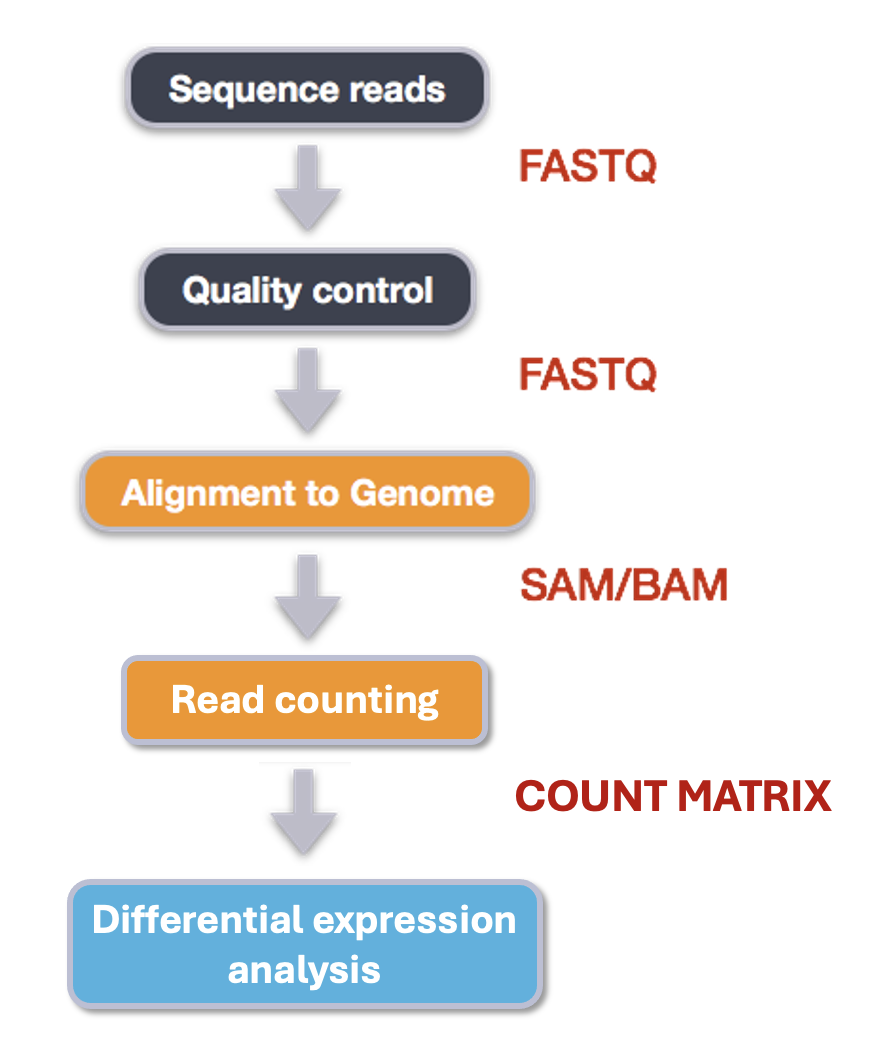
- Quality control - Assessing quality using FastQC
- Quality control - Trimming and/or filtering reads (if necessary)
- Align reads to reference genome
- Count the number of reads at each gene
- Analyze differences in gene expression across samples
These workflows in bioinformatics adopt a plug-and-play approach in that the output of one tool can be easily used as input to another tool without any extensive configuration. Having standards for data formats is what makes this feasible. Standards ensure that data is stored in a way that is generally accepted and agreed upon within the community. The tools that are used to analyze data at different stages of the workflow are therefore built under the assumption that the data will be provided in a specific format.
Starting with data
Our data are three samples from an experiment on the conversion of fibroblasts to myofibroblasts, Patalano et al. 2018. There are two known signalling proteins involved in the conversion of prostate fibroblasts to myofibroblasts: TBF-beta and CXCL12. These proteins both affect which genes get transcribed in cells, but they act on different pathways and do not affect all of the same genes as each other.
In this experiment, fibroblasts were treated with either TGF-beta, CXCL12, or a control (termed ‘vehicle’). The first letter of each sample name corresponds to the treatment (eg. the samples treated with TGF-beta begin with T and the vehicle controls begin with a V). For each sample, we have one file with all the forward reads and one file with all the reverse reads.
Quality control
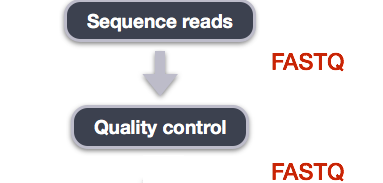
We will now assess the quality of the sequence reads contained in our fastq files.
Details on the FASTQ format
Although it looks complicated (and it is), we can understand the fastq format with a little decoding. Some rules about the format include…
| Line | Description |
|---|---|
| 1 | Always begins with ‘@’ and then information about the read |
| 2 | The actual DNA sequence |
| 3 | Always begins with a ‘+’ and sometimes the same info in line 1 |
| 4 | Has a string of characters which represent the quality scores; must have same number of characters as line 2 |
We can view the first complete read in one of the files our dataset
by using head to look at the first four lines.
OUTPUT
@D00345:37:HBATBADXX:1:1214:3724:1975 2:N:0:GCCAAT
NNNNNNNAATCNTTNCAANTCTCTTGCAAGGTNCCCTGGTTGNGAAAATAC
+
#######22:@#2:#22>#2@3=?=<?@??<<#0:;=??>>?#0-=??>>=
Line 4 shows the quality for each nucleotide in the read. Quality is interpreted as the probability of an incorrect base call (e.g. 1 in 10) or, equivalently, the base call accuracy (e.g. 90%). To make it possible to line up each individual nucleotide with its quality score, the numerical score is converted into a code where each individual character represents the numerical quality score for an individual nucleotide. For example, in the line above, the quality score line is:
OUTPUT
#######22:@#2:#22>#2@3=?=<?@??<<#0:;=??>>?#0-=??>>=The numerical value assigned to each of these characters depends on the sequencing platform that generated the reads. The sequencing machine used to generate our data uses the standard Sanger quality PHRED score encoding, using Illumina version 1.8 onwards. Each character is assigned a quality score between 0 and 41 as shown in the chart below.
OUTPUT
Quality encoding: !"#$%&'()*+,-./0123456789:;<=>?@ABCDEFGHIJ
                   |         |         |         |         |
Quality score:    01........11........21........31........41
Each quality score represents the probability that the corresponding nucleotide call is incorrect. This quality score is logarithmically based, so a quality score of 10 reflects a base call accuracy of 90%, but a quality score of 20 reflects a base call accuracy of 99%. These probability values are the results from the base calling algorithm and depend on how much signal was captured for the base incorporation.
Looking back at our read:
OUTPUT
@D00345:37:HBATBADXX:1:1214:3724:1975 2:N:0:GCCAAT
NNNNNNNAATCNTTNCAANTCTCTTGCAAGGTNCCCTGGTTGNGAAAATAC
+
#######22:@#2:#22>#2@3=?=<?@??<<#0:;=??>>?#0-=??>>=
We can now see that there is a range of quality scores, but that the
start of the sequence is very poor (# = a quality score of
2).
Exercise
What is the last read in the
V1_S1_L001_R1_001_downsampled.fastq file? How confident are
you in this read?
OUTPUT
@D00345:37:HBATBADXX:1:1206:21030:101413 1:N:0:CGATGT
GTTACTCGACCGAAGTCTTCACTATGCATCACAACTCAAGATTANNNTANA
+
@@@FDDFFHGDHHIGFH@@GGHGIIIIIGGDCEGGFHHGFGGAH###--#-
This read has higher quality quality overall than the first read that we looked at, but still has a range of quality scores, including low-quality bases at the end. We will look at variations in position-based quality in just a moment.
At this point, let’s validate that all the relevant tools are installed. If you are using the Chimera then these should be pre-installed, but you’ll need to load some modules.
Why do we need to load modules? Chimera is a shared resource used by many different people working on many different types of projects. Not everybody needs to be able to use the same programs as each other, and if we had every program loaded at the same time it would potentially slow the chimera down and lead to conflicts between programs. Let’s take a look at how many different modules exist on the chimera:
That was a lot!! Remember you can use clear to calm your
terminal down. Let’s look for just the module we need, by typing its
name after module avail.
BASH
$ module avail fastqc

----------------------- /share/apps/modulefiles/modules ------------------------
   fastqc-0.11.9-gcc-10.2.0-osi6pqc (L)

  Where:
   L:  Module is loaded

Use "module spider" to find all possible modules and extensions.
Use "module keyword key1 key2 ..." to search for all possible modules matching
any of the "keys".
If FastQC is not installed then you would expect to see an error like:
$ module avail fastqc
No module(s) or extension(s) found!
Use "module spider" to find all possible modules and extensions.
Use "module keyword key1 key2 ..." to search for all possible modules matching
any of the "keys".
If this happens check with chimera’s manager Jeff Dusenberry before trying to install it.
Now let’s load the FastQC module:
Assessing quality using FastQC
In real life, you will not be assessing the quality of your reads by visually inspecting your FASTQ files. Rather, you will be using a software program to assess read quality and filter out poor quality reads. We will first use a program called FastQC to visualize the quality of our reads. Later in our workflow, we will use another program to filter out poor quality reads.
FastQC has a number of features which can give you a quick impression of any problems your data may have, so you can take these issues into consideration before moving forward with your analyses. Rather than looking at quality scores for each individual read, FastQC looks at quality collectively across all reads within a sample. The image below shows one FastQC-generated plot that indicates a very high quality sample:
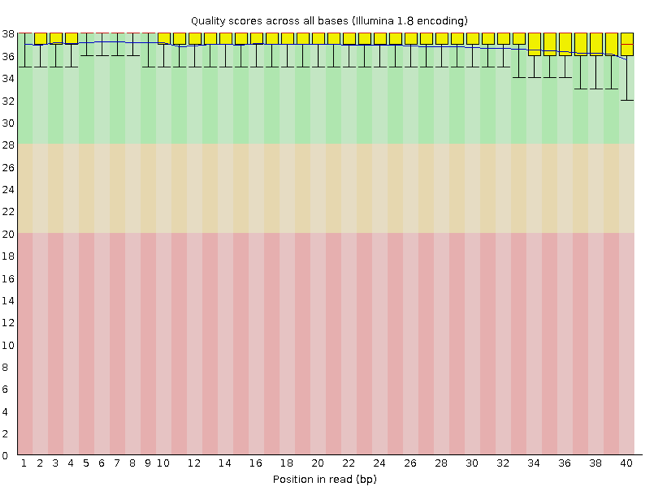
The x-axis displays the base position in the read, and the y-axis shows quality scores. In this example, the sample contains reads that are 40 bp long. This is much shorter than the reads we are working with in our workflow. For each position, there is a box-and-whisker plot showing the distribution of quality scores for all reads at that position. The horizontal red line indicates the median quality score and the yellow box shows the 1st to 3rd quartile range. This means that 50% of reads have a quality score that falls within the range of the yellow box at that position. The whiskers show the absolute range, which covers the lowest (0th quartile) to highest (4th quartile) values.
For each position in this sample, the quality values do not drop much lower than 32. This is a high quality score. The plot background is also color-coded to identify good (green), acceptable (yellow), and bad (red) quality scores.
Now let’s take a look at a quality plot on the other end of the spectrum.
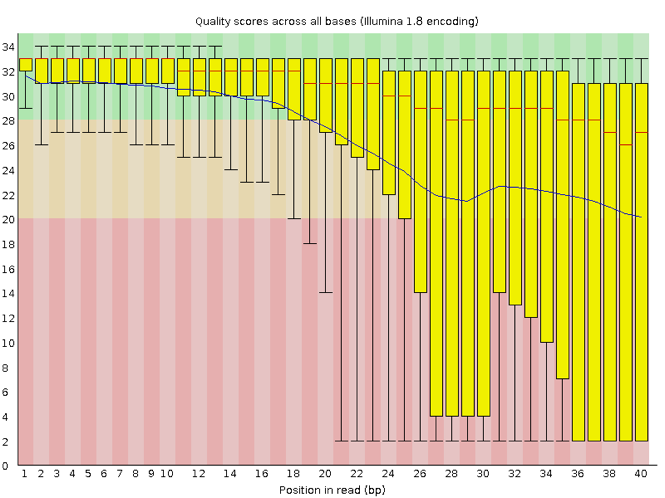
Here, we see positions within the read in which the boxes span a much wider range. Also, quality scores drop quite low into the “bad” range, particularly on the tail end of the reads. The FastQC tool produces several other diagnostic plots to assess sample quality, in addition to the one plotted above.
Running FastQC
We will now assess the quality of the reads that we downloaded.
First, make sure you are still in the new untrimmed_fastq
directory inside of your project’s data directory. Note that you may
have named this directory something different.
Exercise
How big are the files? (Hint: Look at the options for the
ls command to see how to show file sizes.)
OUTPUT
-rw-rw-r-- 1 alice.palmer001 alice.palmer001 133M Aug  7 00:54 C1_S4_L001_R1_001_downsampled.fastq
-rw-rw-r-- 1 alice.palmer001 alice.palmer001 133M Aug  7 00:54 C1_S4_L001_R2_001_downsampled.fastq
-rw-rw-r-- 1 alice.palmer001 alice.palmer001 126M Aug  7 00:55 T1_S7_L001_R1_001_downsampled.fastq
-rw-rw-r-- 1 alice.palmer001 alice.palmer001 126M Aug  7 00:55 T1_S7_L001_R2_001_downsampled.fastq
-rw-rw-r-- 1 alice.palmer001 alice.palmer001 146M Aug  7 00:55 V1_S1_L001_R1_001_downsampled.fastq
-rw-rw-r-- 1 alice.palmer001 alice.palmer001 146M Aug  7 00:55 V1_S1_L001_R2_001_downsampled.fastq
There are six FASTQ files ranging from 126M (1246B) to 1465M.
FastQC can accept multiple file names as input, and on both zipped and unzipped files, so we can use the *.fastq wildcard to run FastQC on all of the FASTQ files in this directory.
You will see an automatically updating output message telling you the progress of the analysis. It will start like this:
OUTPUT
Started analysis of C1_S4_L001_R1_001_downsampled.fastq
Approx 5% complete for C1_S4_L001_R1_001_downsampled.fastq
Approx 10% complete for C1_S4_L001_R1_001_downsampled.fastq
Approx 15% complete for C1_S4_L001_R1_001_downsampled.fastq
Approx 20% complete for C1_S4_L001_R1_001_downsampled.fastq
Approx 25% complete for C1_S4_L001_R1_001_downsampled.fastq
Approx 30% complete for C1_S4_L001_R1_001_downsampled.fastq
Approx 35% complete for C1_S4_L001_R1_001_downsampled.fastq
Approx 40% complete for C1_S4_L001_R1_001_downsampled.fastq
Approx 45% complete for C1_S4_L001_R1_001_downsampled.fastq
Approx 50% complete for C1_S4_L001_R1_001_downsampled.fastq
In total, it should take about thirty seconds for FastQC to run on all six of our FASTQ files. When the analysis completes, your prompt will return. So your screen will look something like this:
OUTPUT
Approx 60% complete for V1_S1_L001_R2_001_downsampled.fastq
Approx 65% complete for V1_S1_L001_R2_001_downsampled.fastq
Approx 70% complete for V1_S1_L001_R2_001_downsampled.fastq
Approx 75% complete for V1_S1_L001_R2_001_downsampled.fastq
Approx 80% complete for V1_S1_L001_R2_001_downsampled.fastq
Approx 85% complete for V1_S1_L001_R2_001_downsampled.fastq
Approx 90% complete for V1_S1_L001_R2_001_downsampled.fastq
Approx 95% complete for V1_S1_L001_R2_001_downsampled.fastq
Analysis complete for V1_S1_L001_R2_001_downsampled.fastq
$
Exercise
We did this directly on the command line, and it worked pretty
quickly (in part because we only have six files that have been
downsampled to only 5% of the original files). Usually for a task like
this we will want to use a slurm script. Turn your fastqc command into a
script and run it using sbatch.
Hint: You’ll need to load the module within the script and include
sbatch options.
#!/bin/bash

#SBATCH --job-name=fastqc # you can give your job a name
#SBATCH --nodes 1 # the number of processors or tasks
#SBATCH --cpus-per-task=2
#SBATCH --account=itcga # our account
#SBATCH --reservation=ITCGA2025 # this gives us special access during the workshop
#SBATCH --time=1:00:00 # the maximum time for the job
#SBATCH --mem=4gb # the amount of RAM
#SBATCH --partition=itcga # the specific server in chimera we are using
#SBATCH --error=%x-%A.err   # a filename to save error messages into
#SBATCH --output=%x-%A.out  # a filename to save any printed output into

# module load
module load fastqc-0.11.9-gcc-10.2.0-osi6pqc

# run fastqc
fastqc *.fastqThe FastQC program has created several new files within our
data/untrimmed_fastq/ directory.
OUTPUT
C1_S4_L001_R1_001_downsampled.fastq
C1_S4_L001_R1_001_downsampled_fastqc.html
C1_S4_L001_R1_001_downsampled_fastqc.zip
C1_S4_L001_R2_001_downsampled.fastq
C1_S4_L001_R2_001_downsampled_fastqc.html
C1_S4_L001_R2_001_downsampled_fastqc.zip
T1_S7_L001_R1_001_downsampled.fastq
T1_S7_L001_R1_001_downsampled_fastqc.html
T1_S7_L001_R1_001_downsampled_fastqc.zip
T1_S7_L001_R2_001_downsampled.fastq
T1_S7_L001_R2_001_downsampled_fastqc.html
T1_S7_L001_R2_001_downsampled_fastqc.zip
V1_S1_L001_R1_001_downsampled.fastq
V1_S1_L001_R1_001_downsampled_fastqc.html
V1_S1_L001_R1_001_downsampled_fastqc.zip
V1_S1_L001_R2_001_downsampled.fastq
V1_S1_L001_R2_001_downsampled_fastqc.html
V1_S1_L001_R2_001_downsampled_fastqc.zip
For each input FASTQ file, FastQC has created a .zip
file and a .html file. The .zip file extension
indicates that this is actually a compressed set of multiple output
files. We will be working with these output files soon. The
.html file is a stable webpage displaying the summary
report for each of our samples.
We want to keep our data files and our results files separate, so we
will move these output files into a new directory within our
results/ directory.
BASH
$ mkdir -p ~/1_project/results/fastqc_untrimmed_reads
$ mv *.zip ~/1_project/results/fastqc_untrimmed_reads/
$ mv *.html ~/1_project/results/fastqc_untrimmed_reads/
Now we can navigate into this results directory and do some closer inspection of our output files.
Viewing the FastQC results
If we were working on our local computers, we would be able to look at each of these HTML files by opening them in a web browser.
However, these files are currently sitting on chimera, where our local computer can not see them. And, since we are only logging into the chimera via the command line, it does not have any web browser setup to display these files either.
So the easiest way to look at these webpage summary reports will be to transfer them to our local computers (i.e. your laptop).
To transfer a file from a remote server to our own machines, we will
use scp, which we learned in the introduction to bash
lessons.
First we will make a new directory on our computer to store the HTML files we are transferring. Let’s put it on our desktop for now. Open a new tab in your terminal program (you can use the pull down menu at the top of your screen or the Cmd+t keyboard shortcut) and type:
Now we can transfer our HTML files to our local computer using
scp. Remember to replace the username with your own!
BASH
$ scp your.UMB.username@chimera.umb.edu:/itcgastorage/share_home/your.UMB.username/itcga_workshop/untrimmed_fastq/fastqc_untrimmed_reads/*.html ~/Desktop/fastqc_htmlNote on using zsh
If you are using zsh instead of bash (macOS for example changed the
default recently to zsh), it is likely that a
no matches found error will be displayed. The reason for
this is that the wildcard (“*”) is not correctly interpreted. To fix
this problem the wildcard needs to be escaped with a “\”:
BASH
$ scp your.UMB.username@chimera.umb.edu:/itcgastorage/share_home/your.UMB.username/itcga_workshop/untrimmed_fastq/fastqc_untrimmed_reads/\*.html ~/Desktop/fastqc_htmlAlternatively, you can put the whole path into quotation marks:
The second part starts with a : and then gives the
absolute path of the files you want to transfer from your remote
computer. Do not forget the :. We used a wildcard
(*.html) to indicate that we want all of the HTML
files.
The third part of the command gives the absolute path of the location
you want to put the files. This is on your local computer and is the
directory we just created ~/Desktop/fastqc_html.
You should see a status output like this:
OUTPUT
your.UMB.username@chimera.umb.edu's password:
C1_S4_L001_R1_001_downsampled_fastqc.html     100%  626KB   7.4MB/s   00:00
C1_S4_L001_R2_001_downsampled_fastqc.html     100%  627KB   9.1MB/s   00:00
T1_S7_L001_R1_001_downsampled_fastqc.html     100%  629KB  10.9MB/s   00:00
T1_S7_L001_R2_001_downsampled_fastqc.html     100%  626KB   8.4MB/s   00:00
V1_S1_L001_R1_001_downsampled_fastqc.html     100%  627KB  10.3MB/s   00:00
V1_S1_L001_R2_001_downsampled_fastqc.html     100%  630KB  14.5MB/s   00:00
Now we can go to our new directory and open the 6 HTML files.
Depending on your system, you should be able to select and open them all at once via a right click menu in your file browser.
Exercise
Discuss your results with a neighbor. Which sample(s) looks the best in terms of per base sequence quality? Which sample(s) look the worst?
All of the reads contain usable data, but the quality decreases toward the beginning and end of the reads.
Decoding the other FastQC outputs
We have now looked at quite a few “Per base sequence quality” FastQC graphs, but there are nine other graphs that we have not talked about! Below we have provided a brief overview of interpretations for each of these plots. For more information, please see the FastQC documentation here
- Per tile sequence quality: the machines that perform sequencing are divided into tiles. This plot displays patterns in base quality along these tiles. Consistently low scores are often found around the edges, but hot spots can also occur in the middle if an air bubble was introduced at some point during the run.
- Per sequence quality scores: a density plot of quality for all reads at all positions. This plot shows what quality scores are most common.
- Per base sequence content: plots the proportion of each base position over all of the reads. Typically, we expect to see each base roughly 25% of the time at each position, but this often fails at the beginning or end of the read due to quality or adapter content.
- Per sequence GC content: a density plot of average GC content in each of the reads.
- Per base N content: the percent of times that ‘N’ occurs at a position in all reads. If there is an increase at a particular position, this might indicate that something went wrong during sequencing.
- Sequence Length Distribution: the distribution of sequence lengths of all reads in the file. If the data is raw, there is often on sharp peak, however if the reads have been trimmed, there may be a distribution of shorter lengths.
- Sequence Duplication Levels: A distribution of duplicated sequences. In sequencing, we expect most reads to only occur once. If some sequences are occurring more than once, it might indicate enrichment bias (e.g. from PCR). If the samples are high coverage (or RNA-seq or amplicon), this might not be true.
- Overrepresented sequences: A list of sequences that occur more frequently than would be expected by chance.
- Adapter Content: a graph indicating where adapater sequences occur in the reads.
- K-mer Content: a graph showing any sequences which may show a positional bias within the reads.
Working with the FastQC text output
Now that we have looked at our HTML reports to get a feel for the
data, let’s look more closely at the other output files. Go back to the
tab in your terminal program that is connected to the chimera (the tab
label will start with your.UMB.username@chimerahead) and
make sure you are in our results subdirectory.
OUTPUT
C1_S4_L001_R1_001_downsampled_fastqc.html
C1_S4_L001_R1_001_downsampled_fastqc.zip
C1_S4_L001_R2_001_downsampled_fastqc.html
C1_S4_L001_R2_001_downsampled_fastqc.zip
T1_S7_L001_R1_001_downsampled_fastqc.html
T1_S7_L001_R1_001_downsampled_fastqc.zip
T1_S7_L001_R2_001_downsampled_fastqc.html
T1_S7_L001_R2_001_downsampled_fastqc.zip
V1_S1_L001_R1_001_downsampled_fastqc.html
V1_S1_L001_R1_001_downsampled_fastqc.zip
V1_S1_L001_R2_001_downsampled_fastqc.html
V1_S1_L001_R2_001_downsampled_fastqc.zip
Our .zip files are compressed files. They each contain
multiple different types of output files for a single input FASTQ file.
To view the contents of a .zip file, we can use the program
unzip to decompress these files. Let’s try doing them all
at once using a wildcard.
OUTPUT
Archive:  C1_S4_L001_R1_001_downsampled_fastqc.zip
caution: filename not matched:  C1_S4_L001_R2_001_downsampled_fastqc.zip
caution: filename not matched:  T1_S7_L001_R1_001_downsampled_fastqc.zip
caution: filename not matched:  T1_S7_L001_R2_001_downsampled_fastqc.zip
caution: filename not matched:  V1_S1_L001_R1_001_downsampled_fastqc.zip
caution: filename not matched:  V1_S1_L001_R2_001_downsampled_fastqc.zip
This did not work. We unzipped the first file and then got a warning
message for each of the other .zip files. This is because
unzip expects to get only one zip file as input. We could
go through and unzip each file one at a time, but this is very time
consuming and error-prone. Someday you may have 500 files to unzip!
A more efficient way is to use a for loop like we
learned in the bash lessons to iterate through all of our
.zip files. Let’s see what that looks like and then we will
discuss what we are doing with each line of our loop.
In this example, the input is six filenames (one filename for each of
our .zip files).Each time the loop iterates, it will assign
a file name to the variable filename and run the
unzip command. The first time through the loop,
$filename is
C1_S4_L001_R1_001_downsampled_fastqc.zip. The interpreter
runs the command unzip on
C1_S4_L001_R1_001_downsampled_fastqc.zip. For the second
iteration, $filename becomes
C1_S4_L001_R2_001_downsampled_fastqc.zip. This time, the
shell runs unzip on
C1_S4_L001_R2_001_downsampled_fastqc.zip. It then repeats
this process for the four other .zip files in our
directory.
When we run our for loop, you will see output that
starts like this:
OUTPUT
Archive:  C1_S4_L001_R1_001_downsampled_fastqc.zip
   creating: C1_S4_L001_R1_001_downsampled_fastqc/
   creating: C1_S4_L001_R1_001_downsampled_fastqc/Icons/
   creating: C1_S4_L001_R1_001_downsampled_fastqc/Images/
  inflating: C1_S4_L001_R1_001_downsampled_fastqc/Icons/fastqc_icon.png
  inflating: C1_S4_L001_R1_001_downsampled_fastqc/Icons/warning.png
  inflating: C1_S4_L001_R1_001_downsampled_fastqc/Icons/error.png
  inflating: C1_S4_L001_R1_001_downsampled_fastqc/Icons/tick.png
  inflating: C1_S4_L001_R1_001_downsampled_fastqc/summary.txt
  inflating: C1_S4_L001_R1_001_downsampled_fastqc/Images/per_base_quality.png
  inflating: C1_S4_L001_R1_001_downsampled_fastqc/Images/per_tile_quality.png
  inflating: C1_S4_L001_R1_001_downsampled_fastqc/Images/per_sequence_quality.png
  inflating: C1_S4_L001_R1_001_downsampled_fastqc/Images/per_base_sequence_content.png
  inflating: C1_S4_L001_R1_001_downsampled_fastqc/Images/per_sequence_gc_content.png
  inflating: C1_S4_L001_R1_001_downsampled_fastqc/Images/per_base_n_content.png
  inflating: C1_S4_L001_R1_001_downsampled_fastqc/Images/sequence_length_distribution.png
  inflating: C1_S4_L001_R1_001_downsampled_fastqc/Images/duplication_levels.png
  inflating: C1_S4_L001_R1_001_downsampled_fastqc/Images/adapter_content.png
  inflating: C1_S4_L001_R1_001_downsampled_fastqc/fastqc_report.html
  inflating: C1_S4_L001_R1_001_downsampled_fastqc/fastqc_data.txt
  inflating: C1_S4_L001_R1_001_downsampled_fastqc/fastqc.fo
Archive:  C1_S4_L001_R2_001_downsampled_fastqc.zip
   creating: C1_S4_L001_R2_001_downsampled_fastqc/
   creating: C1_S4_L001_R2_001_downsampled_fastqc/Icons/
   creating: C1_S4_L001_R2_001_downsampled_fastqc/Images/
  inflating: C1_S4_L001_R2_001_downsampled_fastqc/Icons/fastqc_icon.png
  inflating: C1_S4_L001_R2_001_downsampled_fastqc/Icons/warning.png
  inflating: C1_S4_L001_R2_001_downsampled_fastqc/Icons/error.png
  inflating: C1_S4_L001_R2_001_downsampled_fastqc/Icons/tick.png
  inflating: C1_S4_L001_R2_001_downsampled_fastqc/summary.txt
  inflating: C1_S4_L001_R2_001_downsampled_fastqc/Images/per_base_quality.png
  inflating: C1_S4_L001_R2_001_downsampled_fastqc/Images/per_tile_quality.png
  inflating: C1_S4_L001_R2_001_downsampled_fastqc/Images/per_sequence_quality.png
  inflating: C1_S4_L001_R2_001_downsampled_fastqc/Images/per_base_sequence_content.png
  inflating: C1_S4_L001_R2_001_downsampled_fastqc/Images/per_sequence_gc_content.png
  inflating: C1_S4_L001_R2_001_downsampled_fastqc/Images/per_base_n_content.png
  inflating: C1_S4_L001_R2_001_downsampled_fastqc/Images/sequence_length_distribution.png
  inflating: C1_S4_L001_R2_001_downsampled_fastqc/Images/duplication_levels.png
The unzip program is decompressing the .zip
files and creating a new directory (with subdirectories) for each of our
samples, to store all of the different output that is produced by
FastQC. There are a lot of files here. The one we are going to focus on
is the summary.txt file.
If you list the files in our directory now you will see:
C1_S4_L001_R1_001_downsampled_fastqc
C1_S4_L001_R1_001_downsampled_fastqc.html
C1_S4_L001_R1_001_downsampled_fastqc.zip
C1_S4_L001_R2_001_downsampled_fastqc
C1_S4_L001_R2_001_downsampled_fastqc.html
C1_S4_L001_R2_001_downsampled_fastqc.zip
T1_S7_L001_R1_001_downsampled_fastqc
T1_S7_L001_R1_001_downsampled_fastqc.html
T1_S7_L001_R1_001_downsampled_fastqc.zip
T1_S7_L001_R2_001_downsampled_fastqc
T1_S7_L001_R2_001_downsampled_fastqc.html
T1_S7_L001_R2_001_downsampled_fastqc.zip
V1_S1_L001_R1_001_downsampled_fastqc
V1_S1_L001_R1_001_downsampled_fastqc.html
V1_S1_L001_R1_001_downsampled_fastqc.zip
V1_S1_L001_R2_001_downsampled_fastqc
V1_S1_L001_R2_001_downsampled_fastqc.html
V1_S1_L001_R2_001_downsampled_fastqc.zip
{:. output}
The .html files and the compressed .zip
files are still present, but now we also have a new directory for each
of our samples. We can see for sure that it is a directory if we use the
-F flag for ls.
OUTPUT
C1_S4_L001_R1_001_downsampled_fastqc/
C1_S4_L001_R1_001_downsampled_fastqc.html
C1_S4_L001_R1_001_downsampled_fastqc.zip
C1_S4_L001_R2_001_downsampled_fastqc/
C1_S4_L001_R2_001_downsampled_fastqc.html
C1_S4_L001_R2_001_downsampled_fastqc.zip
T1_S7_L001_R1_001_downsampled_fastqc/
T1_S7_L001_R1_001_downsampled_fastqc.html
T1_S7_L001_R1_001_downsampled_fastqc.zip
T1_S7_L001_R2_001_downsampled_fastqc/
T1_S7_L001_R2_001_downsampled_fastqc.html
T1_S7_L001_R2_001_downsampled_fastqc.zip
V1_S1_L001_R1_001_downsampled_fastqc/
V1_S1_L001_R1_001_downsampled_fastqc.html
V1_S1_L001_R1_001_downsampled_fastqc.zip
V1_S1_L001_R2_001_downsampled_fastqc/
V1_S1_L001_R2_001_downsampled_fastqc.html
V1_S1_L001_R2_001_downsampled_fastqc.zip
Let’s see what files are present within one of these output directories.
OUTPUT
fastqc_data.txt fastqc.fo fastqc_report.html Icons/ Images/ summary.txtUse less to preview the summary.txt file
for this sample.
OUTPUT
PASS    Basic Statistics        C1_S4_L001_R1_001_downsampled.fastq
PASS    Per base sequence quality       C1_S4_L001_R1_001_downsampled.fastq
PASS    Per tile sequence quality       C1_S4_L001_R1_001_downsampled.fastq
PASS    Per sequence quality scores     C1_S4_L001_R1_001_downsampled.fastq
FAIL    Per base sequence content       C1_S4_L001_R1_001_downsampled.fastq
WARN    Per sequence GC content C1_S4_L001_R1_001_downsampled.fastq
PASS    Per base N content      C1_S4_L001_R1_001_downsampled.fastq
PASS    Sequence Length Distribution    C1_S4_L001_R1_001_downsampled.fastq
FAIL    Sequence Duplication Levels     C1_S4_L001_R1_001_downsampled.fastq
WARN    Overrepresented sequences       C1_S4_L001_R1_001_downsampled.fastq
PASS    Adapter Content C1_S4_L001_R1_001_downsampled.fastq
The summary file gives us a list of tests that FastQC ran, and tells
us whether this sample passed, failed, or is borderline
(WARN). Remember, to quit from less you must
type q.
Documenting our work
We can make a record of the results we obtained for all our samples
by concatenating all of our summary.txt files into a single
file using the cat command. We will call this
fastqc_summaries.txt and move it to
~/1_project/docs.
Exercise
Which samples failed at least one of FastQC’s quality tests? What test(s) did those samples fail?
We can get the list of all failed tests using grep.
OUTPUT
FAIL	Per base sequence content	C1_S4_L001_R1_001_downsampled.fastq
FAIL	Sequence Duplication Levels	C1_S4_L001_R1_001_downsampled.fastq
FAIL	Per base sequence content	C1_S4_L001_R2_001_downsampled.fastq
FAIL	Sequence Duplication Levels	C1_S4_L001_R2_001_downsampled.fastq
FAIL	Per base sequence content	T1_S7_L001_R1_001_downsampled.fastq
FAIL	Sequence Duplication Levels	T1_S7_L001_R1_001_downsampled.fastq
FAIL	Per base sequence content	T1_S7_L001_R2_001_downsampled.fastq
FAIL	Sequence Duplication Levels	T1_S7_L001_R2_001_downsampled.fastq
FAIL	Per base sequence content	V1_S1_L001_R1_001_downsampled.fastq
FAIL	Sequence Duplication Levels	V1_S1_L001_R1_001_downsampled.fastq
FAIL	Per base sequence content	V1_S1_L001_R2_001_downsampled.fastq
FAIL	Per sequence GC content	V1_S1_L001_R2_001_downsampled.fastq
FAIL	Sequence Duplication Levels	V1_S1_L001_R2_001_downsampled.fastq
Other notes – optional
Quality encodings vary
Although we have used a particular quality encoding system to
demonstrate interpretation of read quality, different sequencing
machines use different encoding systems. This means that, depending on
which sequencer you use to generate your data, a # may not
be an indicator of a poor quality base call.
This mainly relates to older Solexa/Illumina data, but it is essential that you know which sequencing platform was used to generate your data, so that you can tell your quality control program which encoding to use. If you choose the wrong encoding, you run the risk of throwing away good reads or (even worse) not throwing away bad reads!
Same symbols, different meanings
Here we see > being used as a shell prompt, whereas
> is also used to redirect output. Similarly,
$ is used as a shell prompt, but, as we saw earlier, it is
also used to ask the shell to get the value of a variable.
If the shell prints > or $ then
it expects you to type something, and the symbol is a prompt.
If you type > or $ yourself, it
is an instruction from you that the shell should redirect output or get
the value of a variable.
Key Points
- Quality encodings vary across sequencing platforms.
-
forloops let you perform the same set of operations on multiple files with a single command.